

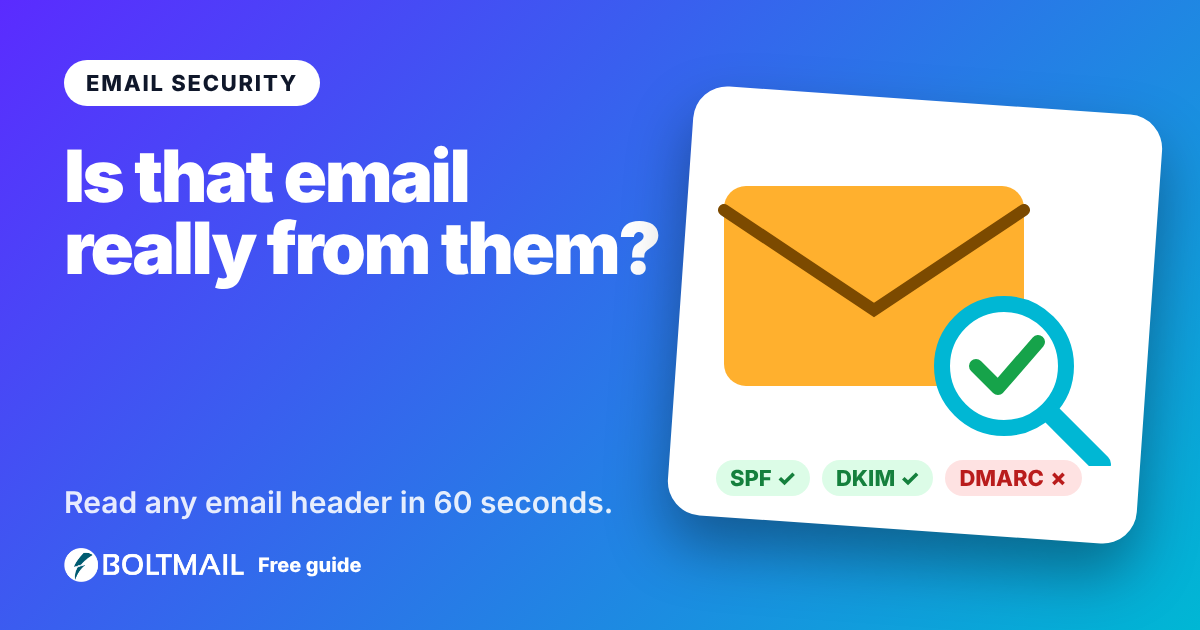
Every email you receive has two layers. The part you see is the sender, the subject and the message. The part you do not see is the header: a long block of technical lines that records who really sent the message, which servers handled it, and whether the sender passed the checks that stop forgery. If an email feels wrong, the header is where the truth is. An email header analyzer turns that wall of text into something you can read in seconds.
You can try it right now with the free BoltMail Email Header Analyzer. Paste the headers, press one button and see the route, the delays and the authentication results. The rest of this guide explains what those results mean.
What is an email header?
A header is a list of lines in the form Name: value. Some are added by the sender's mail program (From, To, Subject, Date). Many more are added automatically by each server the message passes through. Because servers add their lines on top of the existing ones, reading the headers from the bottom up shows the journey from the sender to you.
The lines that matter most for checking a suspicious message are Received, Authentication-Results, Return-Path, Reply-To, From and Message-ID.
How to get the raw headers
- Gmail: open the message, click the three dots and choose Show original, then copy the text.
- Outlook: open the message, go to File, Properties and copy the box called Internet headers.
- Apple Mail: choose View, Message, All Headers.
- A BoltMail inbox: open the message and use the raw or source view to copy the full header block.
Always copy the complete header, from the first line to the blank line before the message body. A partial header hides the very lines that prove or disprove a forgery.
Reading the Received lines
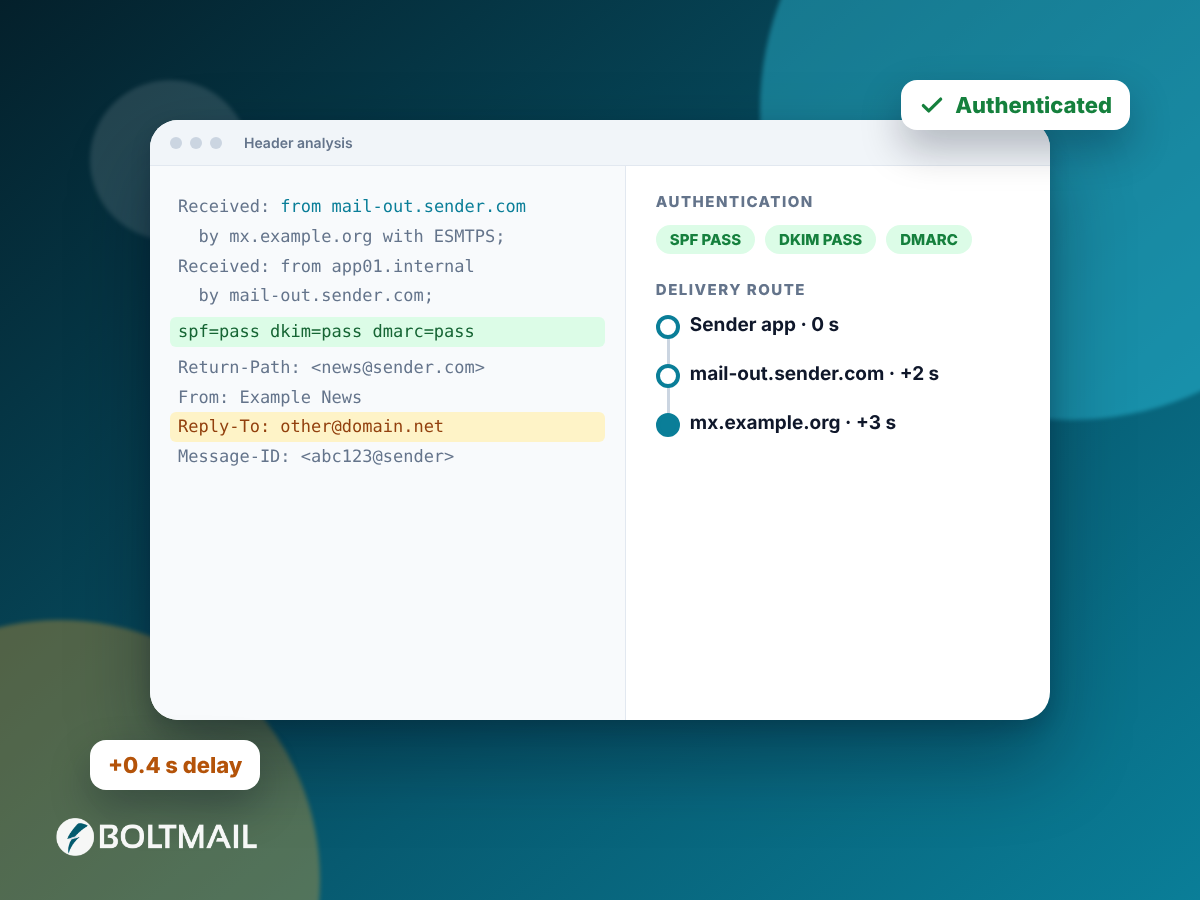
Each Received line is a stamp from one server: who handed the message over, who received it, when, and sometimes the IP address of the sender. The analyzer lists these as hops in the order the email travelled and calculates the time between them.
Delays of a few seconds are normal. A hop that takes ten minutes or more can point to a queue, a greylisting server or a message that was held for scanning. A timestamp that is earlier than the previous hop usually means two servers disagree about the time, which is common and harmless, but a large jump can be a sign of a forged line.
The first public IP address in the chain is usually the true origin of the message. Private addresses (starting with 10, 192.168 or 172.16 to 172.31) belong to the sender's internal network and tell you little.
SPF, DKIM and DMARC in plain English
Email was designed in an era when nobody checked who was really sending. Three standards were added later to fix that, and the receiving server writes their verdict in the Authentication-Results line.
- SPF asks: is this server allowed to send mail for this domain? The domain publishes a list of approved servers and the receiver checks the sender against it.
- DKIM asks: was this message signed by the domain and left unchanged on the way? The signature is a cryptographic seal attached to the header.
- DMARC asks: do the SPF or DKIM results match the address shown in the From line, and what should happen if they do not? It stops attackers from passing a check with their own domain while showing yours.
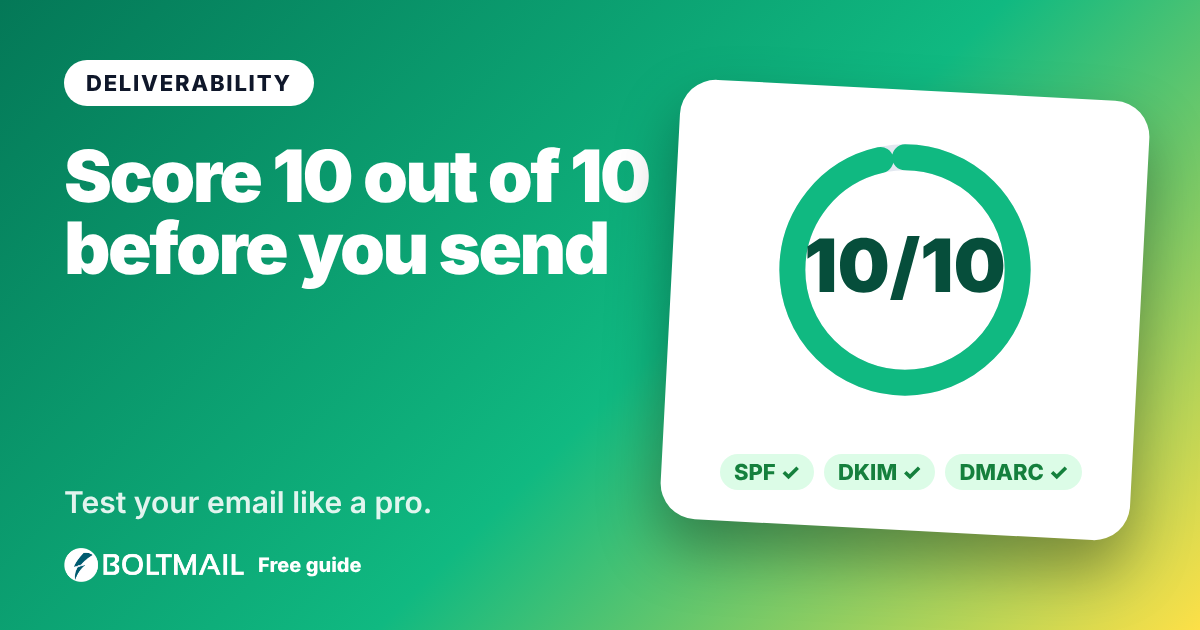
Three passes is the healthy result. A fail on any of them does not always mean fraud, because misconfigured newsletters fail too, but a fail on a message that claims to come from your bank deserves suspicion.
Red flags the analyzer looks for
- The From domain differs from the Return-Path domain without a mailing service involved.
- Reply-To points at a different domain, so your reply goes to someone other than the apparent sender.
- No authentication results at all, or one of SPF, DKIM and DMARC failing.
- Missing or unusual Message-ID values.
- Long or backwards delays between hops.
The tool combines these into one plain verdict: authenticated, needs a closer look, or likely spoofed. Treat the verdict as strong evidence, not as a court ruling. When in doubt, do not click links or open attachments, and contact the sender through a channel you already trust.
Why it runs in your browser
Headers contain addresses, server names and sometimes personal details. That is why the analyzer works entirely inside your browser: the text you paste is never uploaded to BoltMail or anyone else. You can even use it offline once the page has loaded.
Using it with a temporary inbox
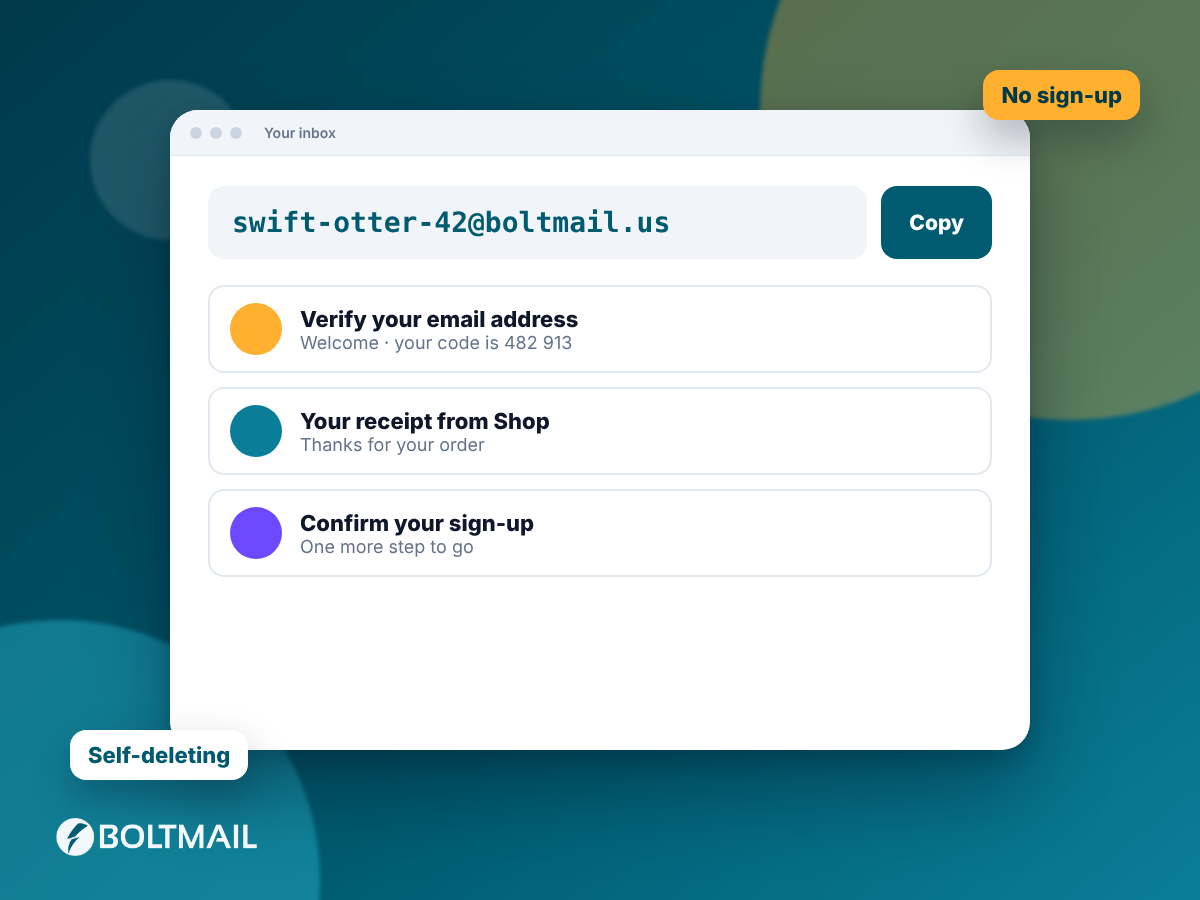
A disposable address is a handy way to look at suspicious mail safely. If you sign up to a service with a free BoltMail inbox and the confirmation email looks odd, copy its headers into the analyzer before you click anything. It also helps developers check that their own test emails pass SPF, DKIM and DMARC, which pairs well with our guide to testing email verification flows.
A quick checklist
- Copy the full raw headers of the message.
- Paste them into the email header analyzer.
- Check the three authentication badges first.
- Read the findings for mismatched domains and long delays.
- If something fails, treat the email as untrustworthy and report it as phishing.
For more on spotting fake messages, read our guide to the warning signs of phishing emails. Understanding headers takes the guesswork out of email security, and with a good analyzer it takes less than a minute.